Tutorial 03
Generate a Video
Turn any generated image into a short animated video.
1 Start from a generated image
Follow Tutorial 01 to generate an image first — the video button only appears once you have a result to animate.
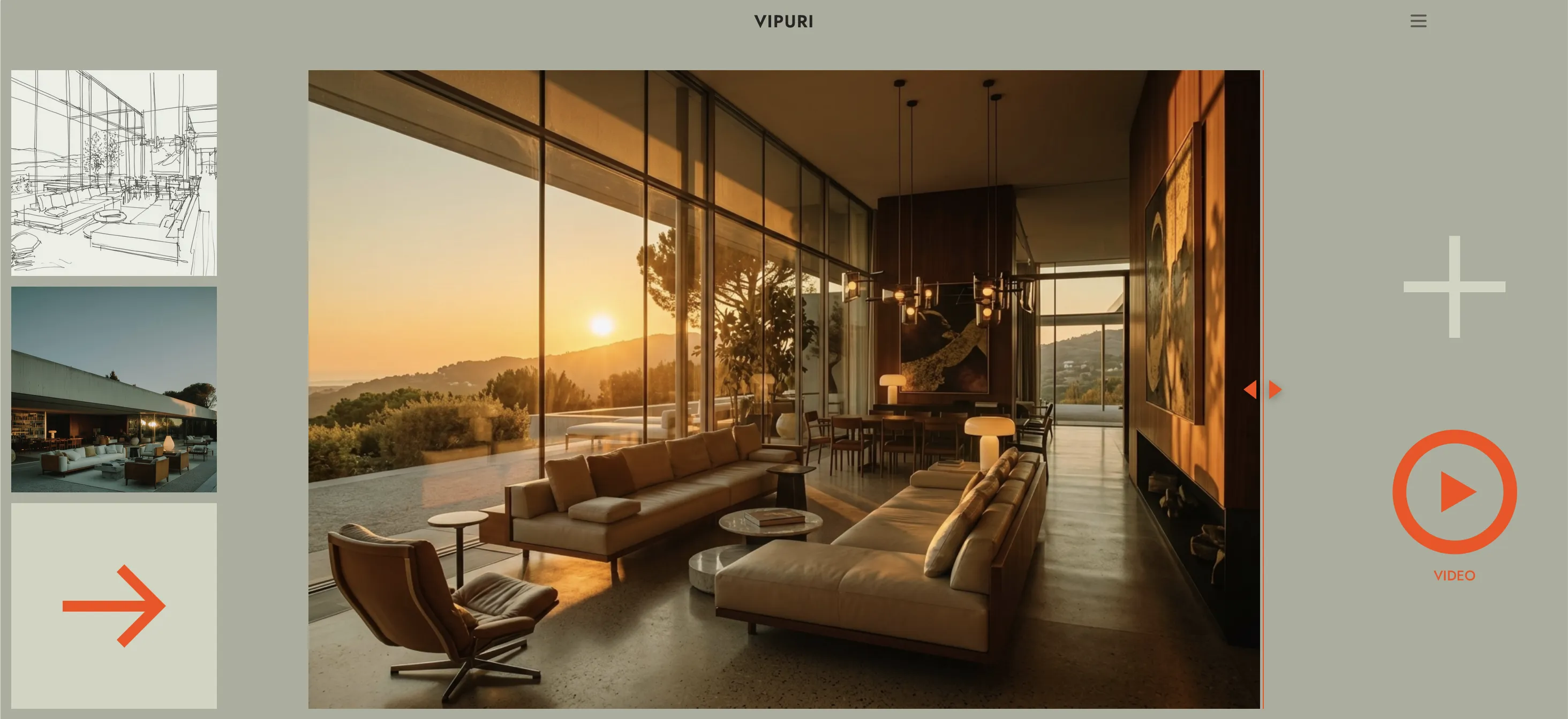
2 Click the Video button
If your plan doesn't include video: an upgrade message appears. Click Upgrade to go to the pricing page, or Close to dismiss it.
If your plan includes video: a confirmation appears showing the cost — 15 credits. Click Confirm to proceed, or Cancel to back out.
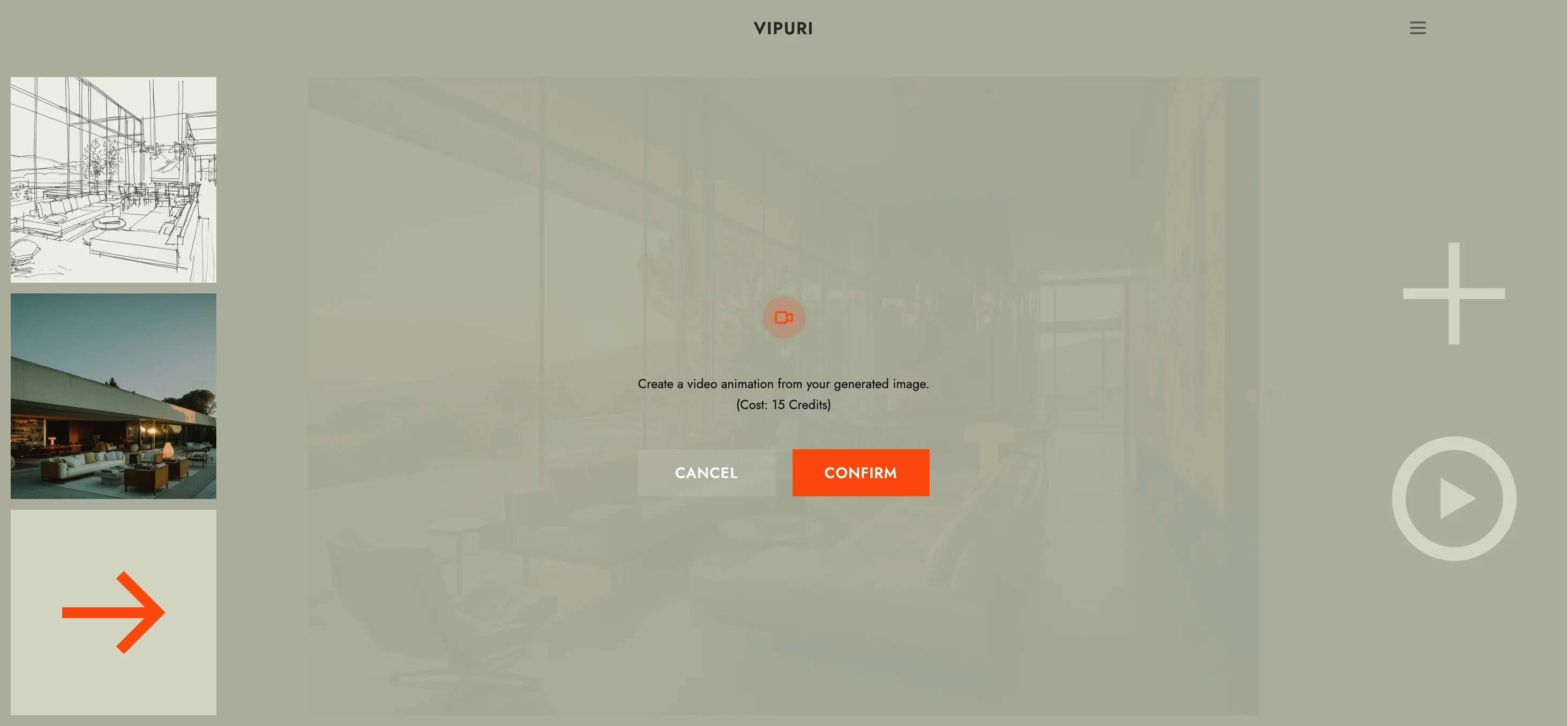
3 Wait for rendering
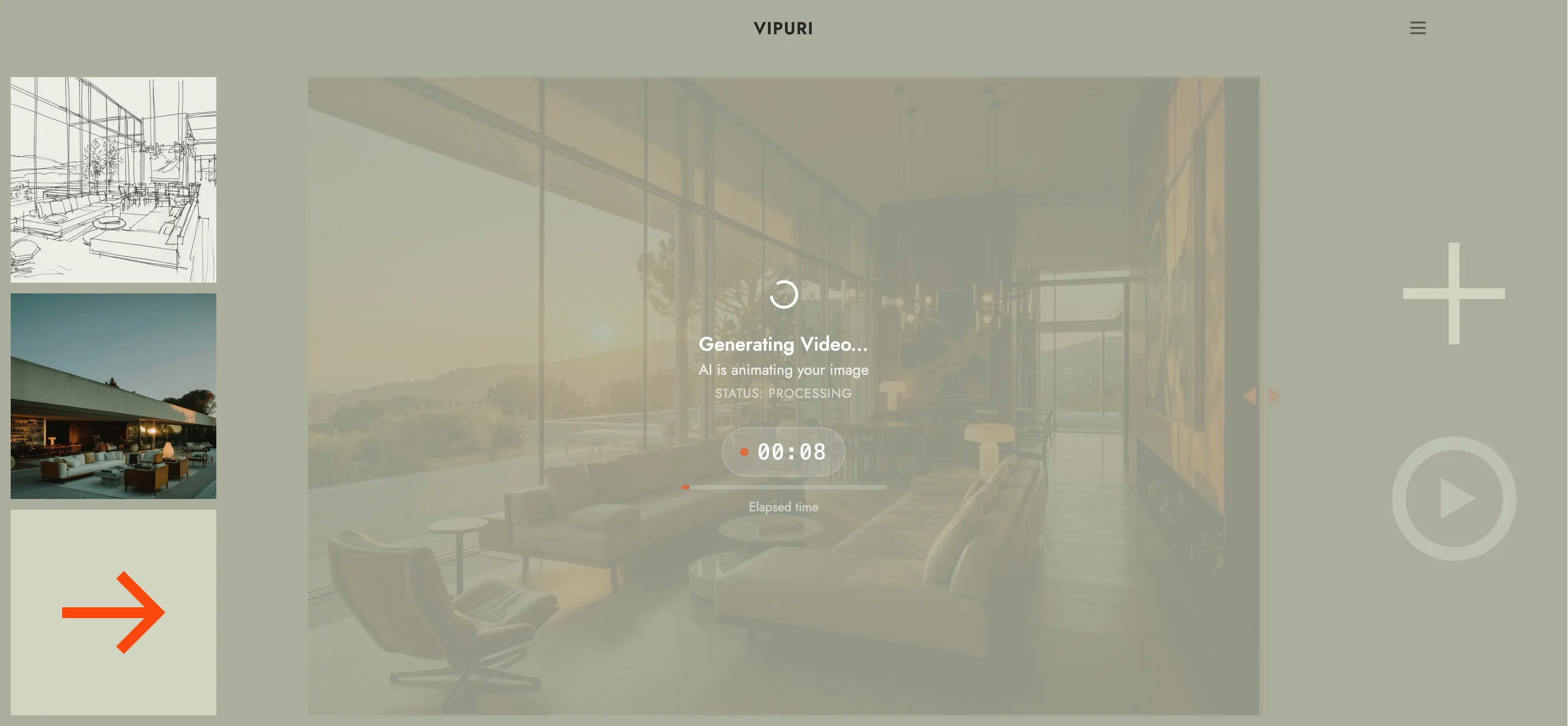
A progress screen with an elapsed-time indicator shows while Vipuri animates your image. This can take a few minutes.
4 Watch your video
It plays automatically once ready. Close it using the ✕ in the corner.
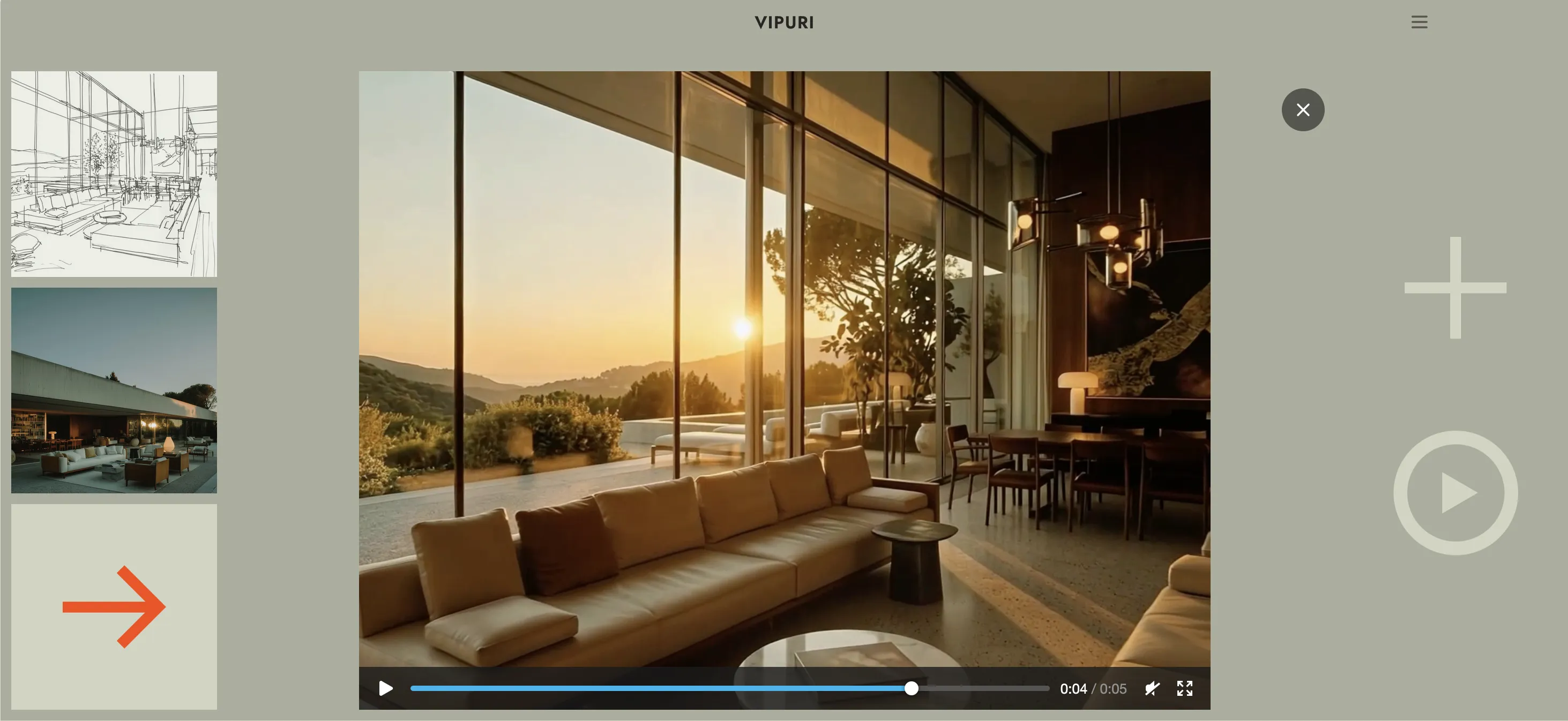
Your video is also saved to the Gallery automatically, where you can share, download, or delete it later — see Tutorial 02.